Communication is key in any online community especially in a vibrant world like Roblox Many adult gamers balancing work and family find limited time for gaming and want to make every minute count This means efficient communication to coordinate with friends or simply enjoy the social aspect is crucial This guide will walk you through everything you need to know about how to type in Roblox from opening the chat box to understanding filters and platform specific nuances Whether you are on PC mobile or console we have got you covered Navigating Roblox chat might seem tricky with its moderation and diverse interfaces but mastering it unlocks a whole new level of social interaction and strategic gameplay for busy adults who value their leisure time and want to connect effectively with others Dive in to optimize your Roblox communication skills and enhance your gaming experience today
How do I open the chat box in Roblox?
To open the chat box in Roblox, press the / (slash) key on your PC keyboard, tap the speech bubble icon on mobile, or use the D-Pad Up or assigned button on your console controller. This will bring up the text input field allowing you to communicate.
Why can't I chat in Roblox sometimes?
You might not be able to chat due to age restrictions on your account (under 13 accounts have stricter filters), parental controls, game-specific settings where chat is disabled, or if your message contains words filtered by Roblox's safety system, appearing as hashtags (####).
What are Roblox chat filters and how do they work?
Roblox chat filters are an automated system designed to block inappropriate language, personal information, and content violating community standards. They scan messages in real-time, replacing flagged words with hashtags or preventing messages from being sent, to ensure a safe environment for all players.
Can you private message (whisper) another player in Roblox?
Yes, you can private message, or 'whisper,' another player in Roblox. Open the chat box, then type '/w [playername] [your message]' and press Enter. Only the specified player will see your message, making it ideal for discreet communication.
How do I use quick chat commands in Roblox for efficiency?
Quick chat commands are shortcuts for common actions. For example, '/e dance' makes your avatar dance, '/w [playername] message' sends a private message, and '/team message' sends a message only to your teammates. These slash commands boost efficiency in gameplay.
Is it possible to communicate in Roblox without typing, for example on a console?
Absolutely. If typing is difficult or restricted, you can use emotes (like '/e wave'), quick chat menus with pre-set phrases found in many games, or even Roblox's optional spatial voice chat for verified users aged 13 and up in supported experiences.
What should I do if my Roblox chat messages appear as hashtags?
If your messages appear as hashtags (####), it means Roblox's filter has blocked certain words or phrases. Try rephrasing your message using different vocabulary, avoiding slang or potentially sensitive terms, and ensure you are not attempting to share personal information.
In the bustling, imaginative universe of Roblox, connection is everything. For many of us who juggle careers, family, and life's endless demands, gaming is a cherished escape—a way to unwind, connect with friends, or even build new skills. Roblox, with its immense variety of user-created experiences, offers a unique platform for this. Yet, a common frustration for many busy adults diving into Roblox is figuring out the basics of communication. You want to coordinate with your team, chat with newfound friends, or simply express yourself, but how exactly do you type in Roblox?
You are not alone in this query. In fact, social interaction is a primary driver for gaming, with recent US gaming statistics indicating that over 87% of gamers play regularly, often for 10+ hours a week, and social gaming trends are surging, especially on mobile. Roblox stands at the forefront of this social revolution. This comprehensive guide is designed to demystify the process of typing in Roblox across all platforms, ensuring you spend less time troubleshooting and more time enjoying the game. We will address common pain points, clarify chat filters, and provide practical tips so you can communicate effectively and safely, making your precious gaming moments truly count.
How Do You Open the Chat in Roblox Across Different Devices?
Opening the chat window in Roblox is your first step to interacting with other players. The method varies slightly depending on whether you are playing on a PC, mobile device, or console, but the core function remains the same: to bring up a text input box where you can type your messages.
- On PC: Simply press the / (slash) key on your keyboard. This will instantly bring up the chat box at the bottom of your screen, ready for you to type. Alternatively, you might see a chat icon (often a speech bubble) that you can click.
- On Mobile (iOS/Android): Look for the speech bubble icon or a chat button, usually located in a corner of your screen (often the top-left or top-right). Tapping this icon will open the chat window and bring up your device's virtual keyboard.
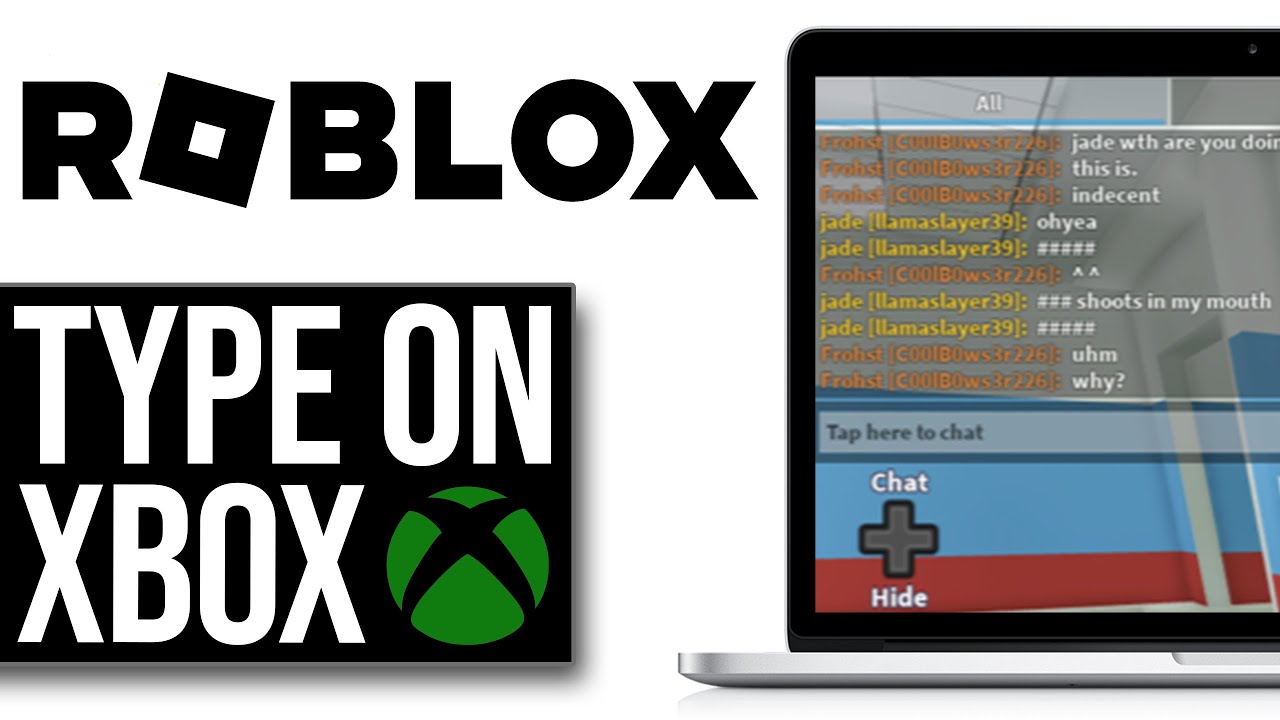
- On Console (Xbox/PlayStation): Typically, you will need to press a specific button on your controller. For Xbox, this is often the D-Pad Up button or a dedicated chat button. For PlayStation, it could be the Touchpad or another assigned button. Once pressed, a chat interface will appear, and you can use your console's virtual keyboard or an attached physical keyboard to type.
Why Can't I Type in Roblox Sometimes and What Are Common Roadblocks?
It can be incredibly frustrating when you are trying to communicate and your messages just are not going through or the chat box is missing. Several factors can prevent you from typing in Roblox, many of which are put in place for safety and platform integrity. Understanding these common roadblocks will help you troubleshoot quickly.
- Age Restrictions and Parental Controls: Roblox has robust safety features. If your account is set to a younger age (under 13), chat functionality may be restricted to 'Quick Chat' only, or heavily filtered. Parents can also implement additional account restrictions that limit communication. Always check account settings.
- Chat Filters: Roblox uses an advanced filtering system to block inappropriate language, personal information, and anything that violates their community standards. If your message contains filtered words or phrases, it might appear as hashtags (####) or not send at all.
- Game-Specific Settings: Some individual Roblox experiences or games may disable chat entirely or modify its functionality. This is usually at the game developer's discretion, often to maintain a specific atmosphere or focus.
- Account Status: If your account has been moderated or temporarily banned for violating Roblox's terms of service, your chat privileges might be revoked.
- Technical Glitches: Occasionally, a temporary bug or internet connectivity issue might prevent chat from working correctly. Restarting the game or your device often resolves these.
Are There Different Ways to Chat in Roblox Beyond Public Text?
Roblox offers more than just public game-wide chat. Knowing the different communication channels allows for more nuanced and private interactions, which is especially useful when coordinating strategies with a specific group or having a one-on-one conversation with a friend.
- Public Game Chat: This is the most common form of chat, visible to everyone in the same game server. It's great for general communication, asking questions, or making announcements to the broader player base.
- Private Messages (Whispers): If you want to talk directly to a single player without everyone else seeing, you can send a 'whisper'. To do this, open the chat, type /w [playername] [your message] and press Enter. Only that player will see your message.
- Team Chat: In games that feature teams, you can often communicate specifically with your teammates. This is crucial for tactical gameplay. The command for team chat is usually /team [your message], though some games might have a dedicated button or toggle.
- Roblox Website Messaging: Outside of games, you can send private messages to your Roblox friends through the Roblox website or app. This functions like a typical messaging service, allowing for persistent conversations.
- Group Chat: If you are part of a Roblox Group, some groups have dedicated chat features or forums where members can communicate.
How Do Roblox Chat Filters Work and How Can I Communicate Effectively Within Them?
Roblox's chat filters are designed to protect users, especially younger players, from inappropriate content, cyberbullying, and attempts to share personal information. While essential for safety, they can sometimes be a hurdle for clear communication. Understanding their mechanics is key to navigating them.
The filtering system uses an AI-powered moderation tool that scans all messages in real-time. It looks for:
- Profanity and offensive language.
- Slurs and hate speech.
- Attempts to share real-world personal information (phone numbers, addresses, social media links).
- References to illicit activities.
- Content promoting self-harm or violence.
To communicate effectively:
- Be Clear and Direct: Avoid slang or abbreviated words that might be misinterpreted by the filter. Sometimes, rephrasing a sentence can bypass a false positive.
- Use Roblox's Official Language: Stick to terms and concepts within the Roblox ecosystem.
- Leverage 'Safe Chat' Phrases: If you are on an account with stricter filters, learn the pre-approved phrases and quick chat options.
- Join Age-Appropriate Experiences: Games rated for older audiences (e.g., 13+) often have slightly less restrictive chat filters.
What Are Some Quick Chat Commands Every Roblox Player Should Know?
Quick chat commands, often starting with a slash (/), are shortcuts that streamline your communication and interaction within Roblox games. Mastering these can save you time and make you a more efficient player, especially when you are trying to balance gaming with a busy schedule.
- /w [playername] [message]: Sends a private whisper to a specific player. For example, /w FriendGuy Hey, wanna team up?
- /team [message]: Sends a message only to your teammates. Vital for strategic coordination.
- /e [emote name]: Performs an emote or animation. Common ones include /e dance, /e wave, /e point. Many games have unique emotes.
- /me [action]: Describes an action your character is doing. For instance, /me shrugs will display 'YourName shrugs'.
- /friend [playername]: Sends a friend request directly through the chat.
- /unfriend [playername]: Removes a player from your friends list.
How Can I Chat Safely and Responsibly in the Roblox Environment?
As adult gamers, we understand the importance of a positive and respectful online environment. Roblox is designed for a broad audience, including many younger players. Maintaining good digital citizenship ensures a fun and safe experience for everyone.
Here are key practices for responsible chat:
- Be Respectful: Always treat other players with courtesy, even during competitive moments. Avoid harassment, hate speech, or bullying.
- Protect Personal Information: Never share your real name, age, address, phone number, school, or any other personal details with strangers. Roblox filters are there to help, but personal vigilance is your best defense.
- Report Misconduct: If you encounter a player who is violating Roblox's rules, use the in-game reporting tools. This helps the platform maintain a healthy community. You can usually find the report option by clicking on a player's name in the player list.
- Understand Community Standards: Familiarize yourself with the Roblox Community Standards. Knowing the rules helps you avoid accidental violations and understand what is considered unacceptable behavior.
- Moderate Your Own Content: Before sending a message, consider if it is appropriate for all ages.
Does Typing in Roblox Differ on Mobile vs. PC vs. Console?
While the core function of typing is universal, the user experience does change across different platforms. These differences often reflect the input methods available on each device and are designed to optimize gameplay.
- PC: Offers the most seamless typing experience due to the presence of a full physical keyboard. Chatting is quick and efficient. Advanced users can even use external communication apps like Discord alongside Roblox.
- Mobile: Relies on virtual keyboards. This can be slower and more prone to typos. However, the convenience of mobile gaming (over 50% of US gamers predominantly use mobile) means many players adapt. Auto-correct features can sometimes interfere with specific Roblox terms or filters.
- Console: Uses a virtual keyboard accessed via controller inputs, which is generally the slowest method. Many console gamers opt for quick chat options or attach a USB keyboard for faster text input, mirroring the PC experience for communication.
What If My Keyboard Isn't Working for Chat in Roblox? Troubleshooting Tips.
Experiencing keyboard issues when trying to type in Roblox can be a real game-stopper. Whether it is a physical keyboard on PC or a virtual one on mobile/console, there are several troubleshooting steps you can take to get back to chatting.
- Check Basic Connectivity: For PC users, ensure your physical keyboard is properly plugged in. If it is wireless, check battery levels and Bluetooth connection.
- Restart Roblox and Your Device: Often, a simple restart of the Roblox application or your entire device can resolve temporary software glitches.
- Test Keyboard Outside Roblox: Open a text editor (like Notepad on PC or a notes app on mobile) and try typing. If your keyboard does not work there, it is a system-wide issue, not Roblox-specific.
- Check Game Settings: Some Roblox games have their own internal settings that can disable or modify chat. Look for a 'Settings' or 'Options' menu within the specific game.
- Update Drivers/OS: Ensure your operating system and keyboard drivers (on PC) are up to date. For mobile, make sure your Roblox app and OS are the latest versions.
- Clear Cache: For persistent issues, clearing Roblox's cache (if possible on your device) might help.
- Reinstall Roblox: As a last resort, uninstalling and reinstalling the Roblox app can fix corrupted files causing issues.
How Can I Improve My Roblox Chat Experience for Quicker Communication?
For adult gamers with limited time, efficiency is key. Optimizing your Roblox chat experience can mean more productive team play and better social interactions. Here are some tips:
- Use a Physical Keyboard: If you play on a console or even frequently on a mobile device (with a tablet and a stand), consider investing in a small Bluetooth keyboard. This dramatically speeds up typing.
- Learn Chat Shortcuts: Master the slash commands (/w, /team, /e) to quickly access specific functions without navigating menus.
- Utilize Quick Chat: Many games offer pre-set quick chat phrases or emotes. These are excellent for rapid communication of common messages like 'Hello,' 'Thanks,' or 'Need help.'
- Pre-write Complex Messages: If you anticipate needing to send a longer, complex message, you could draft it in a separate notes app and then copy-paste it into Roblox chat (be mindful of filters).
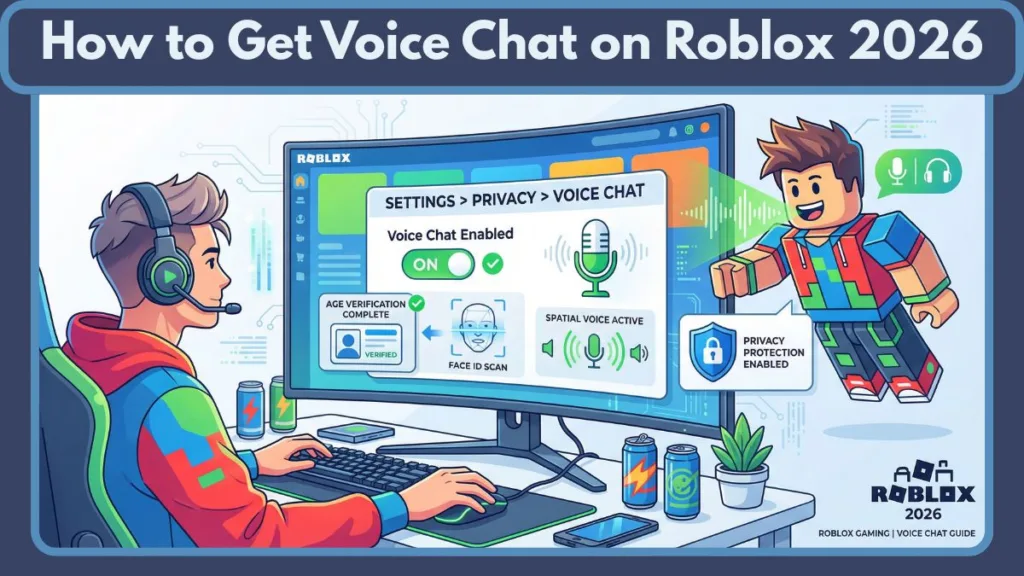
- Voice Chat (If Available and Age-Appropriate): Roblox has introduced spatial voice chat in some experiences. If you are comfortable and meet the age requirements (13+ with verified age), this is the fastest form of communication.
Are There Ways to Communicate in Roblox If I Can't Type at All?
Absolutely! Even if you are unable to type, either due to restrictions, technical issues, or personal preference, Roblox offers several alternative communication methods to ensure you can still interact and enjoy the social aspects of the platform.
- Emotes and Animations: As mentioned, many games allow you to perform emotes (like waving, dancing, or pointing) that convey emotion or simple messages. These are often accessed via a dedicated emote menu or slash commands (/e dance).
- Quick Chat Menus: Some games implement structured 'Quick Chat' menus with pre-defined phrases. These are common in games geared towards younger audiences or those requiring fast, simple calls.
- In-Game Actions: Many actions within a game itself can serve as communication. For example, dropping an item for another player, pointing to an objective, or following a leader can convey intent without a single word.
- Voice Chat: For verified users 13 and older, Roblox's optional spatial voice chat feature allows for real-time verbal communication in supported experiences, completely bypassing text input. This is a game-changer for many adult players.
Mastering how to type in Roblox is more than just learning a few keyboard shortcuts; it's about unlocking a richer, more connected gaming experience. In a world where 60% of US gamers balance their passion with demanding lives, efficient and safe communication is paramount. From understanding chat filters to leveraging quick commands and platform-specific tips, you are now equipped to navigate Roblox's social landscape with confidence. Remember, the goal is always to have fun, connect, and optimize your limited gaming time.
What's your biggest Roblox chat challenge or your favorite communication hack? Comment below and share your insights with fellow gamers!
FAQ Section
Can I turn off chat in Roblox? Yes, you can disable chat functionality in your Roblox privacy settings. This is often done by parents for younger players or by individuals who prefer a less interactive experience.
Is Roblox chat monitored? Yes, Roblox chat is actively monitored by automated systems and human moderators to ensure compliance with their Community Standards and to keep the platform safe for all users, especially children.
How do I report inappropriate messages in Roblox? You can report inappropriate messages by clicking on the player's name in the player list, then selecting the 'Report' option. Follow the prompts to describe the violation.
Can I use voice chat in Roblox? Yes, Roblox offers an optional spatial voice chat feature for users aged 13 and older who have verified their age. It is available in supported experiences.
Why do my messages appear as hashtags (####)? Your messages appear as hashtags because Roblox's filtering system has detected words or phrases that violate its community standards or are deemed inappropriate/private information. Try rephrasing your message.
Can I send friend requests through chat? Yes, you can send a friend request by typing '/friend [playername]' in the chat box, replacing '[playername]' with the username of the person you wish to friend.
Open Roblox chat on PC mobile console Understand why chat might be blocked age restrictions filters Safely communicate with friends and other players Use quick chat commands and emotes Troubleshoot common typing issues Master platform specific chat methods Report inappropriate messages or behavior Enhance social gaming experience
35


How To Type Emojis On Roblox PC YouTube . How To Type In Chat On Roblox Xbox In Game 2025 UPDATE YouTube . How To Type In Chat On Roblox Xbox In Game MUST Watch YouTube . How To Update Roblox In 2026 Fix Error Code 280 On PC Mobile Xbox Roblox Update It.webp. How To Draw A Roblox Noob Super Easy Step By Step Guide For Kids How To Make A Roblox Game In 2026 Beginner Guide 1024x683



How To Publish A Game On Roblox In 2026 Roblox YouTube . Start Using Type Checking In Roblox Roblox Development Tips YouTube . How To Get Devil Trigger In Roblox Type Soul. A Mother Or Father S Information To Utilizing Roblox In 2026 Ivugangingo 2026 Parental Guide For Roblox Usage UnicMinds . Definitive Guide To Roblox 2026 TM 07169 Definitive Guide To Roblox 2026



How To Add People Roblox Easily Your 2026 Guide . How To Get Voice Chat On Roblox 2026 Enable VC Without ID Izoate How To Enable Voice Chat In Roblox 2026. How To Type On Roblox Wall YouTube . Roblox 2026 Logo REVEALED New Color New Look YouTube Maxres2 . How To Message On Roblox 2026 A Quick Guide



How To Type In Roblox YouTube . How Many Games Are On Roblox 2026 Updated Image. How To Draw A Roblox Noob Super Easy Step By Step Guide For Kids How To Play Roblox Online 1024x683 . How To Message On Roblox 2026 A Quick Guide . 2026 How To Display A Text Label On Player S Screen When A Part Is Hqdefault




How To Message On Roblox 2026 A Quick Guide . Roblox Me Command What Does It Actually Do NoFilter. How To Message On Roblox 2026 A Quick Guide . Roblox 2026 New Logo REVEAL First Look At The Future Shorts YouTube Hq2 . Roblox Gift Cards Removed From Microsoft Rewards 2026 Roblox Voice Chat Settings



Roblox 2026 Logo Evolve YouTube Oardefault . How To Get Headless In Roblox Your 2026 Guide Roblox How To Get Headless Head 1 . How To Message On Roblox 2026 A Quick Guide . How To Message On Roblox 2026 A Quick Guide . How To Message On Roblox 2026 A Quick Guide

How To Make A Roblox Game With AI Complete 2026 Guide Image. How Do I Type Roblox Sticker Sticker For Sale By Soyos Redbubble Bg,f8f8f8 . Roblox Unveils Homepage Ad Format At CES 2026 Outlook Respawn Image 1200x630 2026 01 . How To Master Blind Shot Controls In Roblox 2026 Guide Roblox Welcome To Bloxburg Codes 1024x576 . How To Type Emojis In Roblox YouTube