Unlock the full potential of your Roblox creations by learning how to acquire and implement various animations. This comprehensive guide covers everything from utilizing the built-in Roblox Animation Editor to exploring community-created resources and understanding animation packs. Discover practical tips for enhancing player movement emotes and in-game object behaviors without complex scripting. We will navigate the process of finding free and paid animation assets ensuring your Roblox experience is dynamic and engaging. Perfect for both budding creators and experienced developers seeking to add polish to their projects this resource simplifies the often intricate world of Roblox animations. Stay updated with the latest methods to bring life to your virtual worlds improving player immersion and creative expression across all your Roblox games and experiences.
Related games- Guide Does Reinstalling Steam Delete Games No
- Guide to Roblox DevEx Rate Maximize Your Robux Earnings
- Guide How To Make Custom Roblox Shirts Easy Fast
- Guide Sakura High School Roblox Tips Tricks
- Guide Which Gaming VR Headset is Right for You 2026
How do I find animation IDs for existing Roblox animations?
You can find animation IDs for existing Roblox animations by navigating to the Roblox Creator Marketplace or by using the Toolbox within Roblox Studio. Search for 'animations' and when you find one you like, click on it. The asset ID will typically be displayed in the URL or in the asset's properties pane in Studio. For animations already in your game, select the Animation object in Explorer, and its AnimationId property will show the ID.
What are the different types of animation priority in Roblox?
Roblox animations have different priorities (Core, Idle, Movement, Action) that determine how they blend and override each other. Core animations are typically base character movements. Idle animations play when a character is still. Movement animations apply during walking, running, or jumping. Action animations are for specific, often impactful events like attacking or emoting, and usually override lower-priority animations to ensure immediate visual feedback for player actions.
Can I upload animations created in Blender to Roblox?
Yes, you can absolutely upload animations created in external 3D software like Blender to Roblox. The general process involves exporting your animated model from Blender as an FBX file. Then, in Roblox Studio, you import the FBX as a custom mesh or rig, and use the Animation Editor's 'Import' function (often via 'Import from FBX') to load the animation data onto the corresponding rig. This allows for highly custom and detailed animations.
How do I make my custom Roblox animation loop seamlessly?
To make your custom Roblox animation loop seamlessly, ensure that the very first frame of your animation perfectly matches the very last frame. When creating the animation in the Animation Editor, duplicate your initial pose and place it as the final keyframe. This eliminates any sudden jumps or hitches when the animation restarts, creating a smooth, continuous cycle. Test the animation thoroughly to confirm the seamless transition.
Why is my Roblox animation not playing on all parts of my character?
If your Roblox animation isn't playing on all parts of your character, check the animation's rig type and ensure it matches the character's rig (R6 vs. R15). Also, verify that all necessary body parts are correctly named and parented within the character model as expected by the animation. Sometimes, custom characters with non-standard naming conventions or missing joints can cause parts to be excluded from an animation's influence. Inspect the hierarchy in Studio to confirm all parts are present and correctly linked.
What's the difference between an 'Animation' object and an 'AnimationController'?
An 'Animation' object in Roblox is the container for the animation asset ID, essentially defining *what* animation will play. An 'AnimationController' is a service or instance that *plays* animations, typically found on non-humanoid models (like props or custom creatures) that need to be animated. For player characters or NPCs with Humanoids, the 'Animator' instance (a child of the Humanoid) serves the same purpose as an 'AnimationController' for playing animations on a humanoid rig. So, 'Animation' defines the animation, 'AnimationController' or 'Animator' executes it.
Are there any performance considerations when using many animations in a Roblox game?
Yes, using many animations can impact performance. Each active animation track consumes memory and processing power. To optimize, prioritize shorter, looping animations, reduce unnecessary keyframes, and ensure you are only loading and playing animations when they are actively needed. Utilizing `AnimationPriority` correctly can also help prevent unnecessary blending computations. Always test your game on various devices, especially mobile, to identify and address any animation-related lag before it affects the player experience.
Hey fellow gamers! Ever felt like your Roblox creations or even your own character looked a little stiff? Like they were stuck in a static pose while everyone else was doing cool dances or performing slick moves? You’re definitely not alone. Many of us, especially those juggling jobs, families, and life’s responsibilities, want to make our gaming time count. We want to relax, have fun, and maybe even build something awesome in games like Roblox without spending hours on complex problems. Getting your characters and objects to move naturally and dynamically can really level up your Roblox experience, whether you’re playing, creating, or just hanging out with friends. This month, social gaming and personalization are huge trends, with 87% of US gamers regularly engaging in online play, often for 10+ hours a week. Making your avatar stand out or your game feel more alive with engaging animations is key to that connection and fun.
The good news is that learning how to get Roblox animations and integrate them into your projects isn't as daunting as it might seem. This guide is designed to cut through the jargon and give you practical, step-by-step solutions to bring your Roblox worlds to life. We’ll cover everything from using Roblox’s built-in tools to finding and implementing animations created by the community. You don't need to be a coding wizard to make things move; you just need the right pointers. So, let’s dive in and unlock the secrets to dynamic, animated Roblox experiences, making your gaming and creative time more rewarding and enjoyable.
What are Roblox Animations and Why Do They Matter?
Roblox animations are essentially sequences of movements applied to characters, objects, or even environmental elements within the Roblox platform. They dictate how things move, from a character walking or jumping to a door opening or a custom monster attacking. These animations are crucial because they add a layer of realism and engagement to any game. Without them, everything would be static and lifeless, making for a very dull experience. For the average gamer who values immersion and fun, well-executed animations can make a huge difference in how enjoyable a game feels. They contribute significantly to the game's overall polish and playability, transforming a basic concept into a vibrant, interactive world.
Think about your favorite Roblox game right now; chances are, it’s packed with smooth, responsive animations. These aren’t just cosmetic; they communicate vital information to the player, like when an enemy is about to strike or when a player is performing a specific action. According to recent gaming trends, players are increasingly looking for visually rich and responsive experiences, especially across mobile and PC platforms. Good animations reduce setup issues, enhance performance perception, and ultimately make your limited gaming time more enjoyable.
How Can I Get Free Roblox Animations for My Games?
Getting free Roblox animations is quite accessible, especially for creators on a budget or those just starting out. The primary method involves leveraging Roblox's extensive library within the Studio environment. You can find a vast array of animations directly in the Toolbox, which is integrated into Roblox Studio. Simply open the Toolbox, navigate to the 'Animations' section, and browse through thousands of community-uploaded and Roblox-official animations. Many of these are free to use and can be directly inserted into your game.
Another excellent resource is the Roblox Creator Marketplace. This online portal allows you to search for models, plugins, images, and, yes, animations. You can filter by 'free' and 'animations' to discover a wealth of assets. Remember to always check the creator's reputation and asset reviews before integrating anything into your game, ensuring quality and avoiding potential issues. These free resources allow you to experiment and build without immediate financial commitment, aligning perfectly with the budget-conscious gamer's approach to skill-building.
What is the Roblox Animation Editor and How Do I Use It?
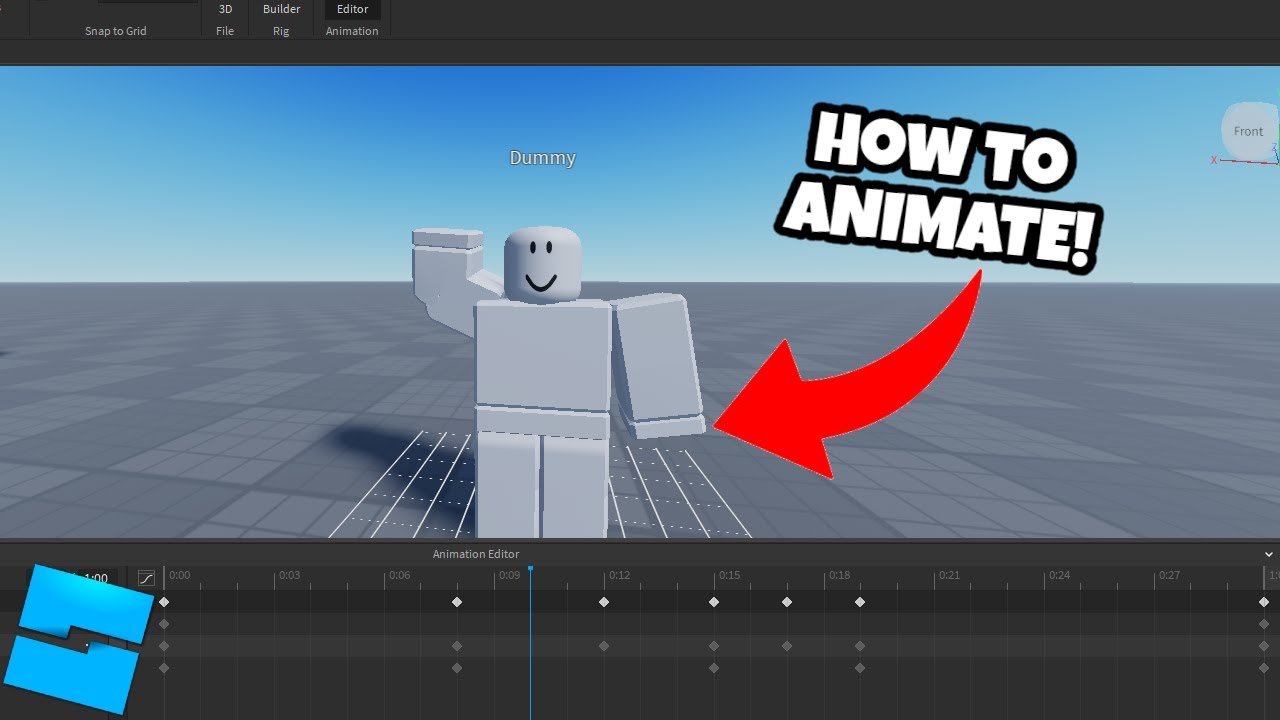
The Roblox Animation Editor is a powerful, built-in tool within Roblox Studio that allows you to create your own custom animations from scratch. It's an intuitive interface where you can pose characters and objects frame by frame to define their movements. To access it, simply open Roblox Studio, insert a Rig (like an R6 or R15 character model) into your workspace, select it, and then go to the 'Plugins' tab. You'll find the 'Animation Editor' button there. Once opened, you can select parts of your rig and manipulate them using Roblox Studio’s move, rotate, and scale tools, recording keyframes along a timeline.
This tool is fantastic for personalizing your games. Whether you want a unique victory dance for your avatar, a specific attack animation for a boss, or realistic movement for a custom vehicle, the Animation Editor provides the means. It requires a bit of practice, but mastering it can significantly elevate the originality and quality of your creations. Many gamers find skill-building aspects like this incredibly rewarding, turning their relaxation time into productive creative sessions. There are numerous tutorials available on YouTube and the Roblox Developer Hub that can guide you through its various features and advanced techniques, helping you maximize its potential.
Can I Create Custom Roblox Animations Without Scripting?
Absolutely! While scripting can definitely enhance and trigger animations, the core process of creating a custom animation in Roblox Studio using the Animation Editor requires zero scripting knowledge. You are essentially using a visual interface to define poses and timings. Once an animation is created and saved in the Animation Editor, it’s typically published to your Roblox profile as an 'Animation Asset ID'.
To play these animations in your game, you would typically use an 'Animator' component within a character model and script small snippets to load and play the animation based on certain events (e.g., player input, game state changes). However, even for playing them, many pre-made scripts or simple `AnimationController` setups are available as resources that require minimal modification. For simple character emotes, you can often just apply the Animation Asset ID to a character's existing 'Animate' script, allowing you to change default walk, run, or jump animations without writing any code at all. This accessibility is great for gamers who want to balance their creative pursuits with busy schedules.
Where Can I Find Ready-Made Animation Packs and Emotes?
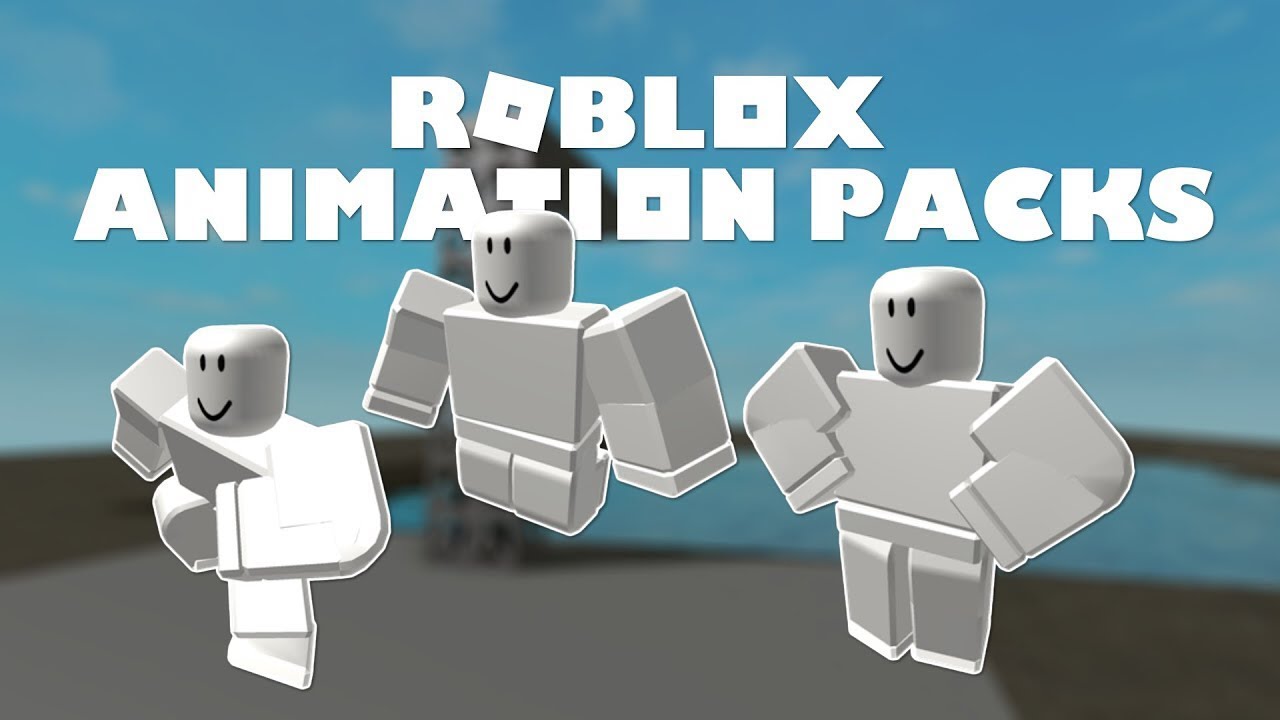
Ready-made animation packs and emotes are readily available both within Roblox and through the Creator Marketplace. For character emotes, you can purchase them directly from the Roblox Avatar Shop. These are typically applied to your avatar and can be used across various games that support custom emotes. Many popular emotes become trending items, influencing social interactions within games.
For game developers, the Roblox Creator Marketplace (and its in-Studio counterpart, the Toolbox) is your go-to. Search for 'animation pack' or specific action animations like 'sword fighting' or 'idle animations'. You'll find assets ranging from full character animation sets (walk, run, jump, idle) to specific object animations. While many are free, some high-quality, professional-grade animation packs are available for Robux. Investing a small amount in a well-made animation pack can save you immense time and effort compared to creating everything from scratch, which aligns with the 'value for money' mindset many adult gamers have when balancing their hobby with real-life expenses.
How Do I Implement and Play Animations in My Roblox Game?
Implementing and playing animations in your Roblox game typically involves a few steps, even for those with minimal scripting experience. First, you need an animation asset ID. This is either from an animation you created in the Animation Editor and published, or one you found in the Toolbox/Creator Marketplace. Once you have the ID, you'll usually need an `Animation` object within your game.
Here’s a basic breakdown:
Insert an Animator: For characters, ensure the `Humanoid` has an `Animator` object as a child. For non-humanoid parts, you might use an `AnimationController`.
Create an Animation Object: Inside the `Animator` (or `AnimationController`), insert an `Animation` instance. Set its `AnimationId` property to your copied asset ID (e.g., `rbxassetid://123456789`).
Load and Play: Use a local script (for player characters) or a server script (for NPCs or environment) to load and play the animation. A simple script might look like this:
`local character = script.Parent`
`local humanoid = character:WaitForChild("Humanoid")`
`local animator = humanoid:WaitForChild("Animator")`
`local animation = Instance.new("Animation")`
`animation.AnimationId = "rbxassetid://YOUR_ANIMATION_ID"`
`local animationTrack = animator:LoadAnimation(animation)`
`animationTrack:Play()`
This basic structure can be adapted for various triggers, like a button press, a character touching a part, or a timer. There are many community resources and YouTube tutorials that simplify this process further, providing copy-pasteable code snippets for common scenarios, making it easier for busy gamers to integrate.
What are the Best Practices for Optimizing Roblox Animations?
Optimizing Roblox animations is crucial for ensuring smooth gameplay, especially since a significant portion of gamers play on mobile devices. Laggy or poorly optimized animations can quickly ruin the player experience. Here are some key best practices:
Keep Animation Length Concise: Avoid overly long animations unless absolutely necessary. Shorter, looping animations are generally more efficient.
Reduce Keyframes: The Animation Editor allows for many keyframes, but each one adds to the data load. Try to achieve smooth movement with the fewest possible keyframes. Utilize the ease-in/ease-out functions effectively.
Group Animations Logically: Instead of having dozens of individual animation assets, group related animations into packs or single assets where possible, if it makes sense for your game's structure.
Use `AnimationPriority`: Set the correct `AnimationPriority` for your animations (e.g., Idle, Movement, Action, Core). This helps Roblox decide which animations should override others, preventing visual glitches and ensuring critical animations play correctly.
Stream Assets: Roblox Studio has settings for streaming assets. Ensure your game is configured to stream assets efficiently, so animations load only when needed, reducing initial load times.
Test on Various Devices: Always test your game and animations on different devices, including mobile phones and lower-end PCs, to ensure they perform well for your entire audience. This month’s data shows mobile gaming continues to dominate, so mobile optimization is non-negotiable.
By following these tips, you can ensure your animations enhance, rather than detract from, the overall performance and enjoyment of your Roblox experience, providing a seamless and professional feel that appeals to all players.
How Can I Troubleshoot Common Roblox Animation Issues?
Running into animation issues can be frustrating, especially when you're trying to unwind with some gaming or development. Common problems include animations not playing, playing incorrectly, or causing lag. Here's a quick troubleshooting guide:
Check Animation ID: Double-check that the `AnimationId` property is correctly set to your published asset ID. A single typo will prevent it from loading.
Verify Rig Compatibility: Ensure your animation was created on or is compatible with the rig type (R6, R15) you're trying to use it on. Animations made for R15 won't work correctly on R6 characters, and vice versa.
Priority Conflicts: If animations are overlapping or canceling each other out, check their `AnimationPriority`. A lower priority animation might be overridden by a higher priority one. Adjusting these can often resolve conflicts.
Script Errors: Open the 'Output' window in Roblox Studio. Any errors in your scripts related to loading or playing animations will be displayed there. These messages often provide clues about what went wrong.
Animator Existence: Confirm that the `Animator` instance is present as a child of the `Humanoid` (or `AnimationController` for non-characters). Animations cannot play without it.
Network Latency: In multiplayer games, high ping or slow internet can sometimes cause animations to appear choppy or delayed. This is usually a broader performance issue, but it's worth considering.
Many of these issues are easily fixable once identified. Don't be afraid to use the Roblox Developer Forum or search online for specific error messages; chances are, another gamer has encountered and solved the same problem. This kind of problem-solving is part of the fun for many seasoned gamers, turning a challenge into a learning opportunity.
What are the Latest Trends in Roblox Animation for 2026?
As we move further into 2026, Roblox animation trends are increasingly focused on hyper-realism, expressive emotes, and efficient asset streaming. With advancements in rendering and engine capabilities, creators are pushing for more fluid, lifelike movements that blur the lines between traditional game engines and Roblox. This includes more nuanced facial animations and intricate physics-based movements for clothing and hair, enhancing character customization and immersion.
Social gaming continues to drive demand for new and creative emotes. Players want more ways to express themselves and interact with friends, leading to a surge in unique dance moves, reactions, and meme-inspired animations. We're also seeing a greater emphasis on performance optimization, with creators finding smart ways to deliver high-quality animations that run smoothly across all devices, including the ever-dominant mobile platform. The rise of AI tools is also starting to influence animation workflows, with some developers experimenting with AI-assisted animation generation, making the process faster and more accessible for creators who balance gaming with life's other demands. Staying current with these trends helps you keep your games fresh and appealing to a broad audience.
Creating dynamic and engaging experiences in Roblox doesn't have to be a headache. By understanding how to get Roblox animations, whether through the built-in tools, free resources, or wisely chosen animation packs, you can dramatically improve the quality and enjoyability of your games. We've covered the basics, explored creation, implementation, and even troubleshooting, giving you a solid foundation to make your virtual worlds truly come alive. Remember, the goal is to enhance the fun, build new skills, and connect with others in vibrant online spaces.
What’s your biggest Roblox animation challenge right now? Comment below and let’s share solutions!
Roblox Animation FAQs
Q: Can I use copyrighted animations from other games in Roblox?
A: No, using copyrighted animations without permission is against Roblox's terms of service and can lead to content removal or account penalties. Always use original animations, those explicitly licensed for Roblox, or those found in the Roblox Toolbox/Creator Marketplace.
Q: Do animations affect game performance on older devices?
A: Yes, poorly optimized or excessively complex animations can significantly impact performance, especially on older devices or mobile phones. Prioritize efficient animations with fewer keyframes and test thoroughly on various hardware to ensure broad compatibility.
Q: How often should I update my game's animations?
A: It depends on your game. For competitive games, animation updates might coincide with balance changes. For social or creative games, new emotes or character movements can be added periodically to keep content fresh and engage your player base. Listen to community feedback for guidance.
Q: Is it possible to re-target animations from one character rig to another?
A: While challenging, it is technically possible. However, directly re-targeting animations between vastly different rig types (e.g., R6 to R15 or custom rigs) within Roblox Studio often requires significant manual adjustment. External 3D software can offer more robust re-targeting features.
Roblox Animation Editor usage Free animation resources Paid animation packs Custom animation creation Enhancing player movement Understanding animation types Implementing animations in games Optimizing animation performance
35#1 Gallery how to get roblox animations


How To Set Up Animations Tutorial Roblox Studio Animation Spoofer . Unlocking Roblox Animation Power With Moon Animator Up To Date 2026 . Unlocking Roblox Animation Power With Moon Animator Up To Date 2026 . Unlocking Roblox Animation Power With Moon Animator Up To Date 2026 . How Export Animations In Roblox Studio Make Animations In Roblox
#2 Gallery how to get roblox animations


HOW TO GET FREE ROBLOX ANIMATIONS Working 2026 YouTube Hqdefault . Unlocking Roblox Animation Power With Moon Animator Up To Date 2026 . How To Get Free Animations In ROBLOX YouTube . How To Add Easing To Animations In Roblox Studio In 2026 Roblox Studio . How To Make Animations In Roblox Studio YouTube
#3 Gallery how to get roblox animations


How To Make Animations Roblox Studio YouTube . How To Change Default Animations In ROBLOX STUDIO IDLE WALKING . How To Make Custom Player Animations In Roblox Studio 800x450. How To CREATE Animations AND UPLOAD Animations On ROBLOX STUDIO YouTube . Unlocking Roblox Animation Power With Moon Animator Up To Date 2026 SL1500
#4 Gallery how to get roblox animations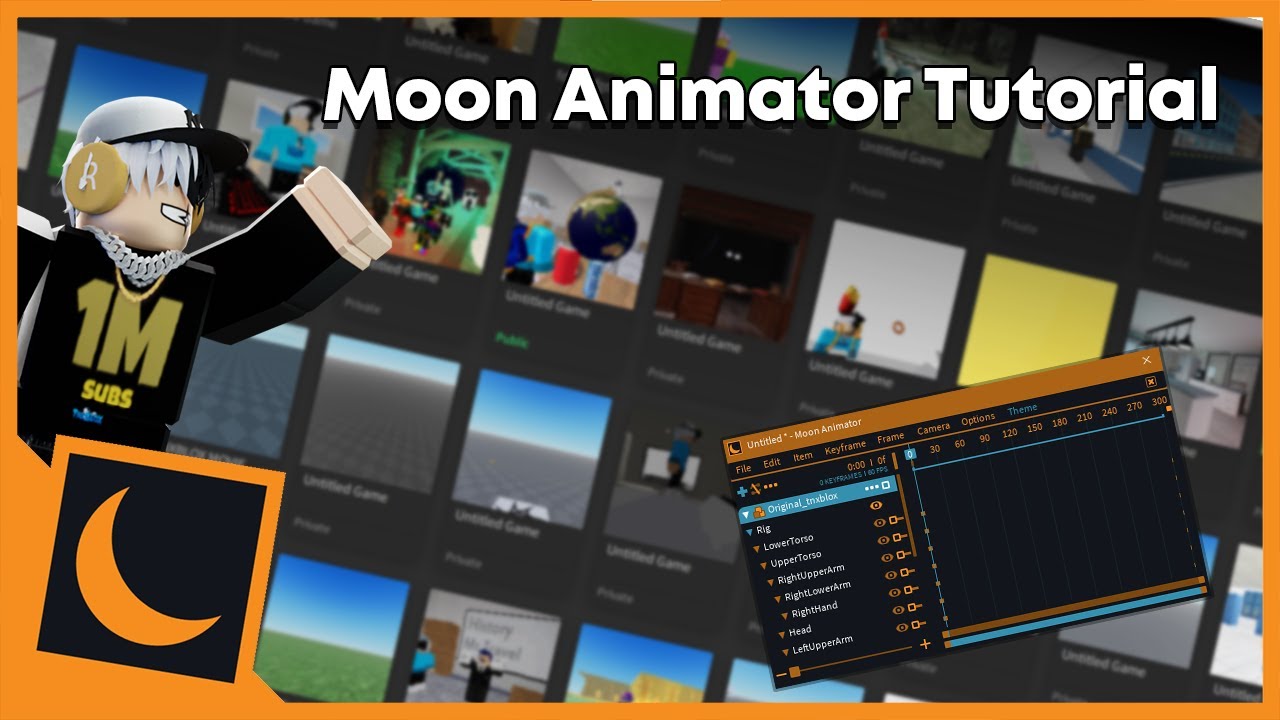


Unlocking Roblox Animation Power With Moon Animator Up To Date 2026 . HOW TO GET FREE ROBLOX ANIMATIONS STILL WORKS YouTube . How To Get And Use Cartoon Animation For Free Roblox Full Guide YouTube . Tutorial On How To Make Custom R6 Animations 2025 Roblox Studio YouTube . How To ANIMATE In ROBLOX STUDIO 2023 YouTube
#5 Gallery how to get roblox animations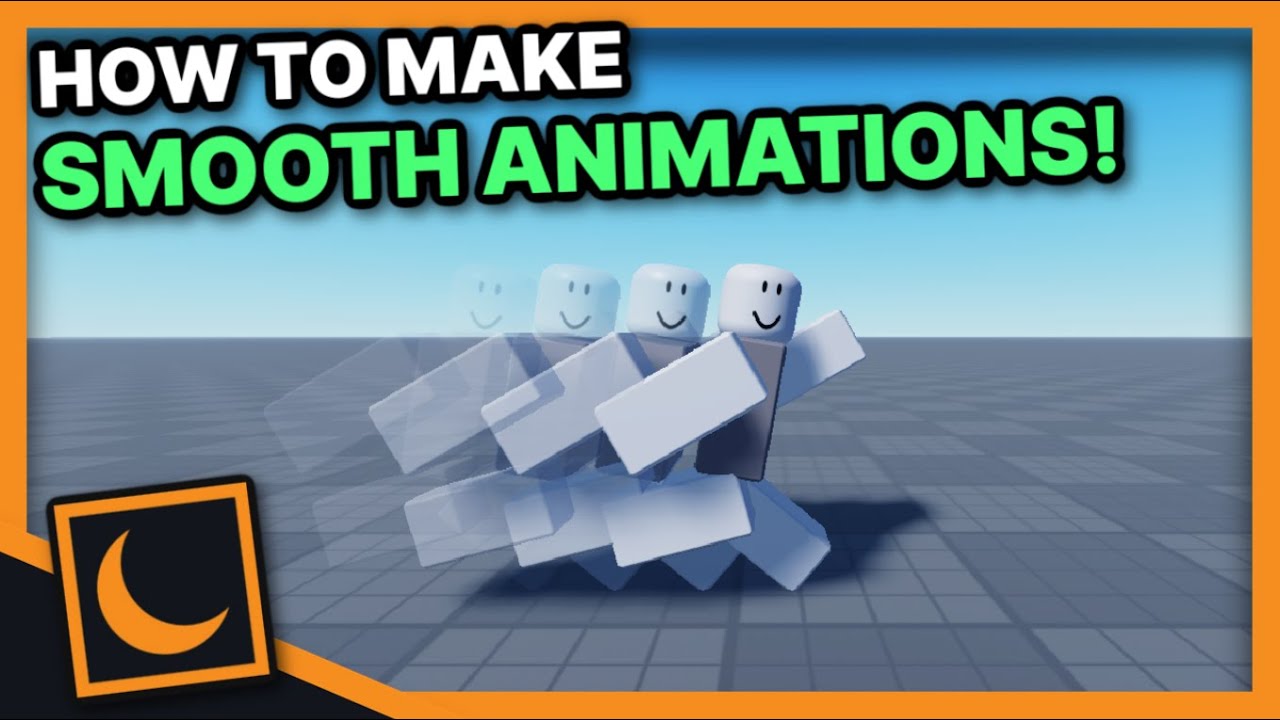

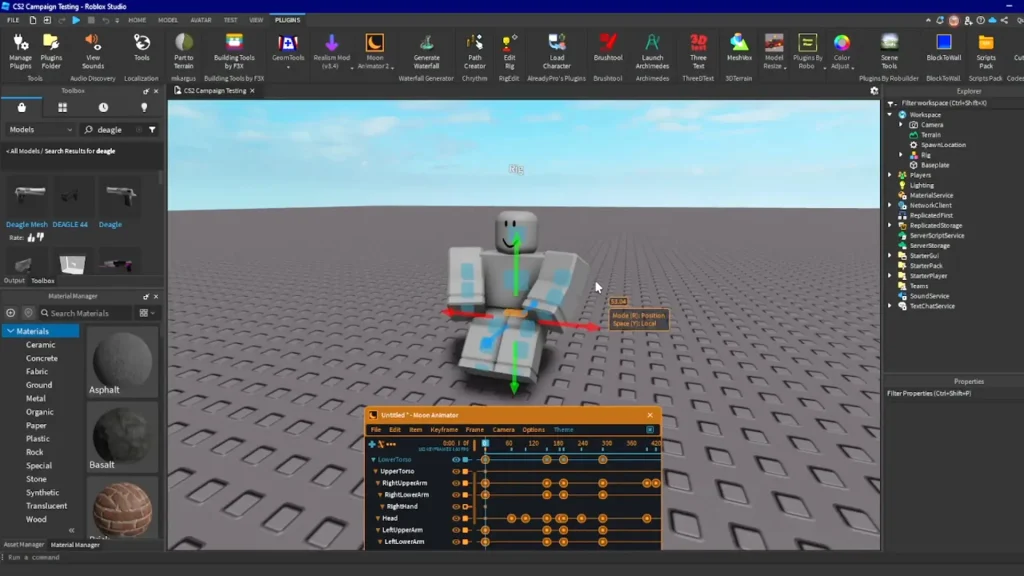

Unlocking Roblox Animation Power With Moon Animator Up To Date 2026 . FREE SECRET REALISTIC ANIMATION BUNDLE HOW TO GET IT ROBLOX IS . How To Make Animations In Roblox Studio For Beginners A Quick User 282 Cover. How To Make Your Own Animation Roblox Studio At Darlene Whitely Blog . How To Make Your Own Animation Roblox Studio At Darlene Whitely Blog
#6 Gallery how to get roblox animations


How To Get Free Animations In Roblox Roblox Try All Animations . Unlocking Roblox Animation Power With Moon Animator Up To Date 2026 . HOW TO GET FREE ANIMATIONS ON ROBLOX YouTube . How To Publish A Game On Roblox In 2026 Roblox YouTube . 10 Best Roblox Animation Packages In 2023 10 Best Roblox Animation Packages In 2022
#7 Gallery how to get roblox animations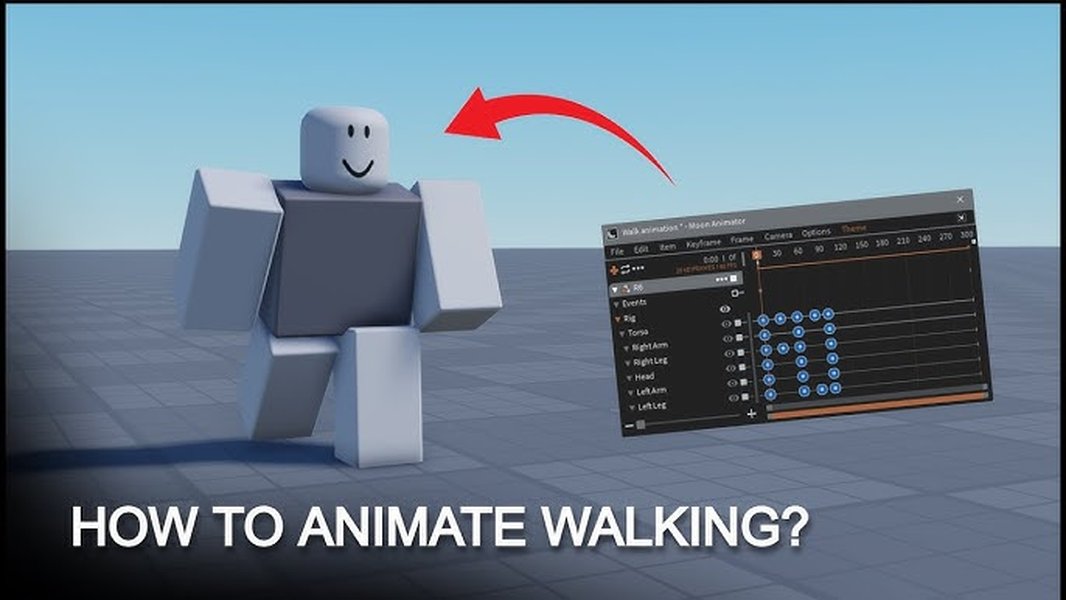



Ithy Unlocking The Secret Power Of Roblox Animations The Key To Roblox Animation Guide For Developers Lbykerd7 1 . HOW TO GET ANY ANIMATION IN ROBLOX 2023 YouTube . How To Get FREE Animations On Roblox YouTube . Roblox Blender Animation Tutorial At Anglea Ramos Blog . How To Make An Animation In Roblox Animation 1 YouTube
